
··Published by Syed Abdullah Shah·8 min read
How to Download Your Instagram Data (2026 Step-by-Step)
Instagram lets you export a full copy of your posts, stories, messages and account history. Here’s how to request it in Accounts Center and what’s inside the file.
Years of posts, stories and messages can live only on Instagram. If you lose access to your account, or decide to delete it, all of that goes with it unless you've saved a copy.
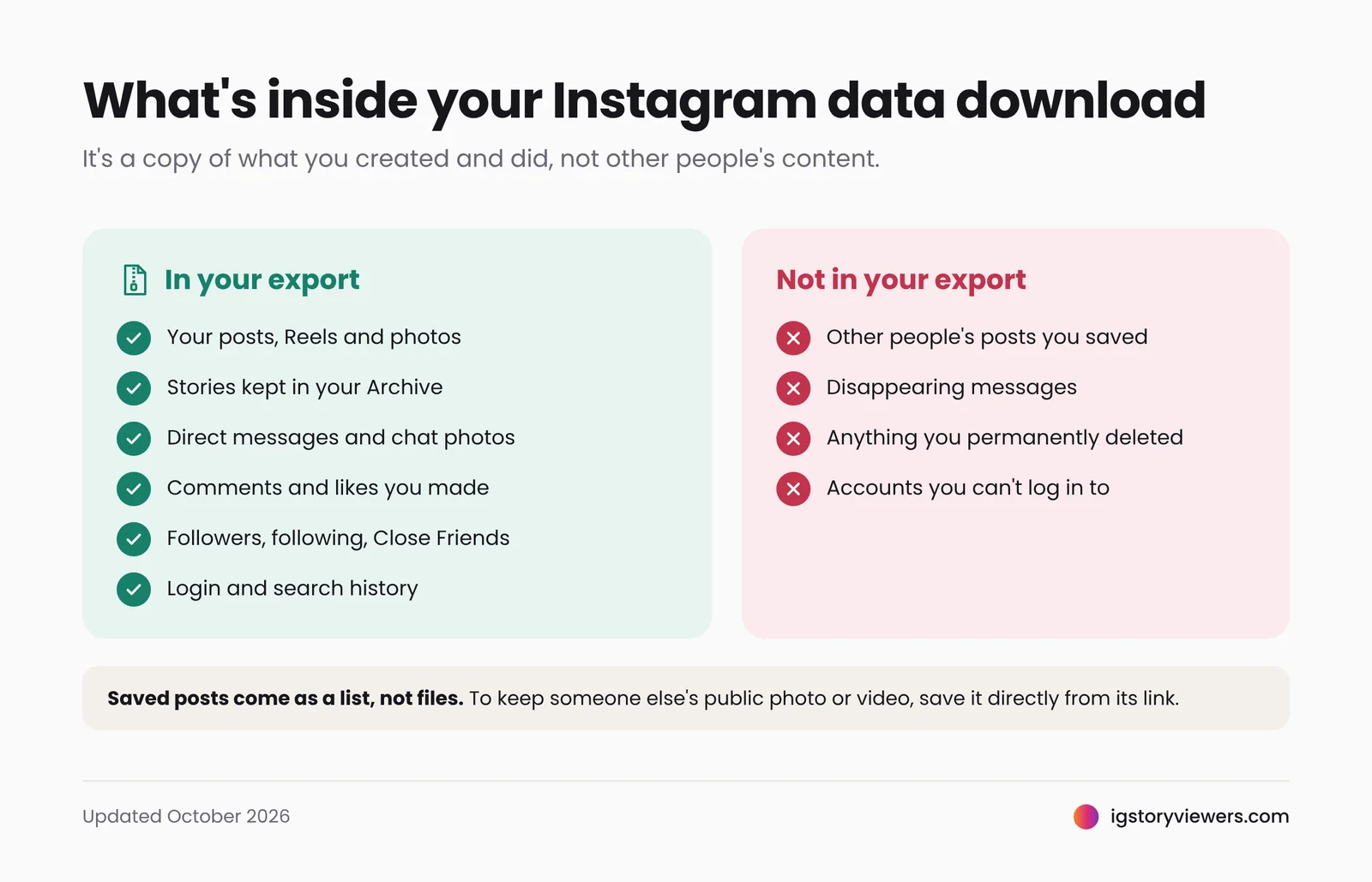
The short answer: go to Accounts Center → Your information and permissions → Export your information → Create export, choose your Instagram profile, pick Export to device, set the date range to All time, and tap Start export. Instagram emails you when the file is ready, usually within a day or two, though it can take longer for large accounts. You then have four days to download it before the link expires.
This guide walks through each step on the app and on desktop, which options to choose, and how to find your photos and videos once the file arrives.
What's included in your Instagram data download?
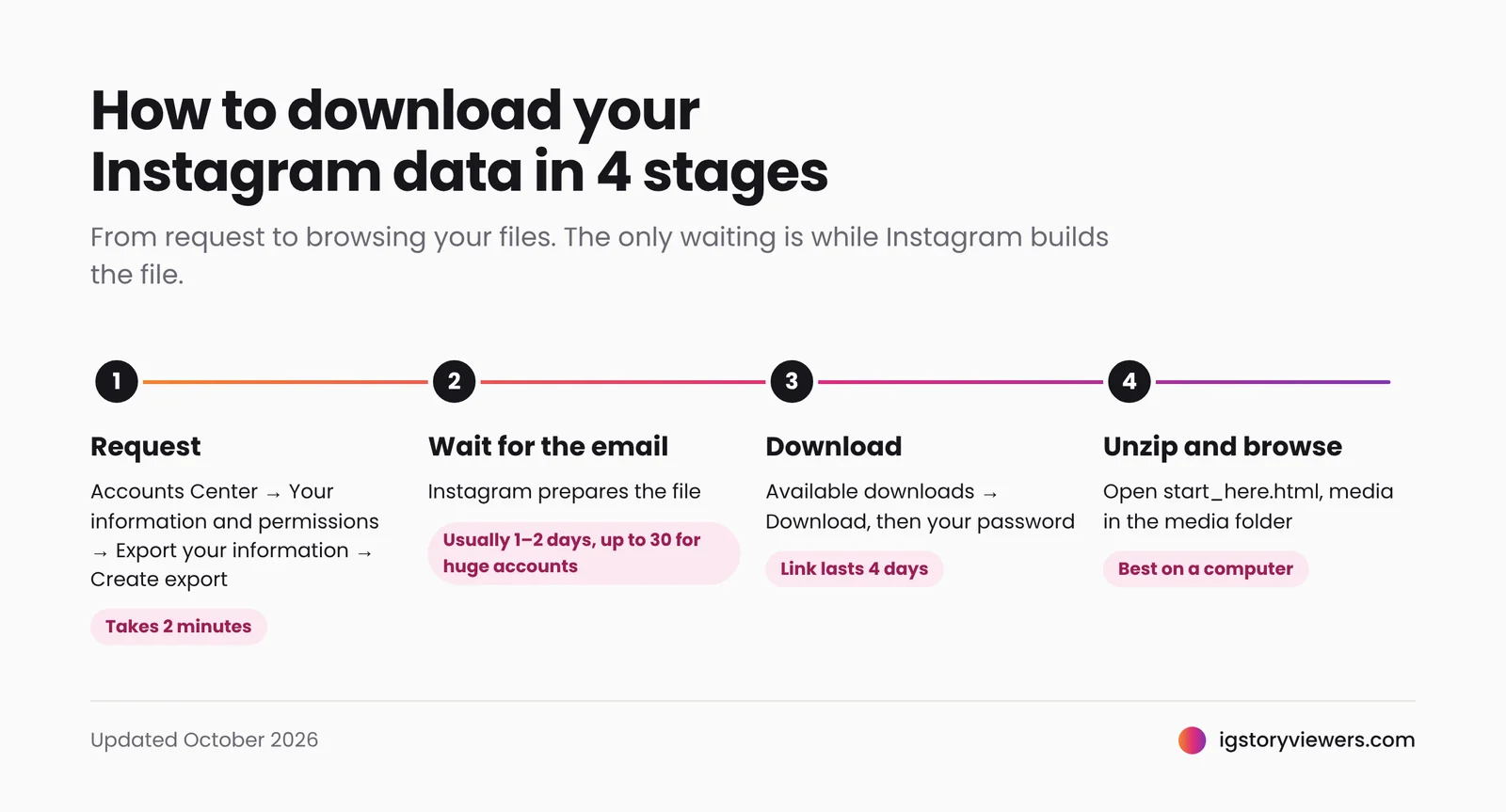
The export is a copy of what you created and did on your account, not other people's content.
| Included | Not included |
|---|---|
| Your posts, Reels and photos, with captions and dates | Other people's posts you saved or liked (you get a list, not their files) |
| Stories you posted and kept in your Archive | Content from accounts you can no longer log in to |
| Your direct messages and photos sent in chats | Disappearing messages |
| Comments and likes you made | Anything you permanently deleted before requesting |
| Followers, following, Close Friends and blocked accounts | |
| Profile details, login history and search history | |
| Ad interests and some activity records |
If you mainly want one video or photo, the full export is overkill. Our guide to downloading Instagram videos and our Instagram post and Reel downloader are much faster for single posts.
How to request your Instagram data?
The request lives in Meta's Accounts Center, which Instagram shares with Facebook. Older guides call it Download your information. In current versions of the app it's called Export your information, so look for either name.
On the Instagram app (iPhone and Android)
- Go to your profile and tap the menu (three lines) in the top right.
- Tap Accounts Center.
- Tap Your information and permissions, then Export your information.
- Tap Create export and choose your Instagram profile.
- Choose Export to device.
- Review the options: information to include, date range, email for the notification, format and media quality (see the next section).
- Tap Start export and enter your password to confirm.
On a computer (instagram.com)
- Sign in at instagram.com and click More at the bottom of the sidebar, then Settings.
- Click Accounts Center.
- Click Your information and permissions, then Export your information.
- Click Create export, select your profile and choose Export to device.
- Set the options, click Start export and confirm with your password.
Meta occasionally renames these menus. If something doesn't match, Instagram's own Help Center article, Review and export a copy of your Instagram information, always shows the current path.
Which options to choose
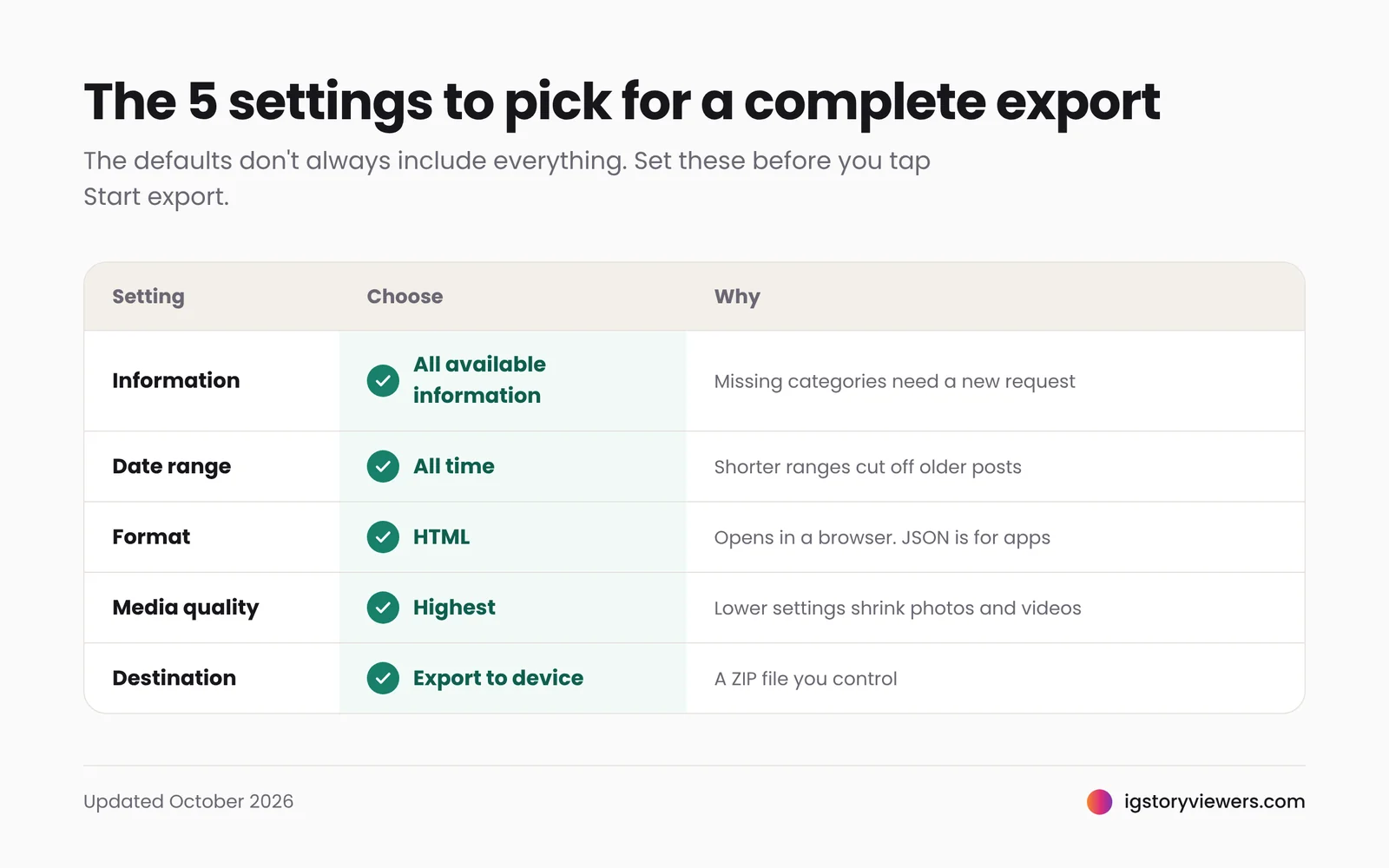
The default settings don't always give you everything. These choices matter most.
| Option | Choose | Why |
|---|---|---|
| Information to include | All available information | You can't add a missing category later without a new request |
| Date range | All time | A shorter default range quietly cuts off your older posts |
| Format | HTML | Opens in any browser like a mini website. Pick JSON only to import into another app |
| Media quality | Highest available | Lower settings shrink your photos and videos |
| Destination | Export to device | Saves a ZIP file you control |
HTML or JSON?
HTML turns your data into pages you can click through in a web browser, with your posts, captions and messages laid out readably. JSON is raw data for developers and other apps, hard to read by eye. If you're unsure, choose HTML. You can always request a second export in JSON later.
Can you export straight to cloud storage?
Accounts Center can also send some information, such as photos and videos, to another service instead of your device. The services offered vary by country and change over time. Exporting to your device is the simplest and works everywhere.
Download and open your Instagram data
1. Wait for the email
Instagram emails you when the export is ready. Small accounts often get it within a day or two. Accounts with years of posts can take much longer, and Meta allows up to 30 days for very large requests. You can close the app while you wait.
2. Download within four days
Go back to Accounts Center → Your information and permissions → Export your information. Your file appears under Available downloads. Tap Download and enter your password. The link expires after four days, so don't leave it.
3. Unzip the file
Your data arrives as a ZIP file, sometimes split into several parts for big accounts.
- Windows: right-click the file and choose Extract All.
- Mac: double-click the file.
- iPhone: open it in the Files app and tap it once to unzip.
- Android: open it in your Files app and tap Extract.
Unzip on a computer if you can. Large exports are much easier to browse on a big screen.
4. Find your photos and videos
In an HTML export, open the main HTML file (usually named start_here.html or index.html) in a browser to click through everything. Your actual image and video files sit in a media folder, sorted into subfolders by type such as posts, stories and reels. Folder names can change slightly between exports.
From there you can copy the files to your phone's gallery, cloud storage or an external drive.
When your Instagram data doesn't arrive or won't open
| Problem | What to do |
|---|---|
| No email after several days | Check spam and the email address set in the request. Then look under Available downloads in Accounts Center, where the file appears even if the email doesn't |
| Still "in progress" after a week | Normal for large accounts. Leave the request running; starting a new one doesn't make it faster |
| The download link has expired | Links last four days. Create a new export |
| Posts from earlier years are missing | The date range was shorter than All time. Request again with All time |
| Photos look small or blurry | Media quality was set low. Request again at the highest quality |
| You can't read the files | You chose JSON. Request again in HTML |
| The ZIP won't open on your phone | The file may still be downloading, or be too large. Open it on a computer instead |
| You can't log in to the account | The export needs your login. Recover the account first through Instagram's login help, then request the export |
Data export vs other ways to save Instagram content
The data export is the right tool for a full backup of your own account. For anything else, a quicker method fits better.
| You want to... | Best method |
|---|---|
| Back up everything before deleting or deactivating | Data export (this guide) |
| Save one of your own posts or Reels | The post's More menu, or your Archive |
| Save a public video or Reel from someone else | Our Instagram video downloader |
| Save a public photo or carousel | Paste the post's link into the same downloader |
| Save a public story before it expires | Our story viewer, or the story download guide |
| Get content from a private account you don't own | Not possible with any tool. See why private Instagram content can't be downloaded |
Every one of those tools works from a link. If you're not sure where to find one, see how to find any Instagram URL.
Should you export before deleting your account?
Yes. Once an account is permanently deleted, its posts, messages and followers can't be recovered, and you can't request an export anymore. Request the export, check the files open correctly, and only then delete the account.
Keep your exported data safe
Your export holds private messages, login history and contact details, so treat it like a passport scan.
- Download it only from Accounts Center. Instagram never sends the file as an email attachment, and never asks for your password in an email. Any message offering your "data file" through another link is phishing.
- Store it somewhere private, such as an encrypted drive or a cloud folder with two-factor login.
- Don't upload it to third-party "analyzer" sites that promise to show who unfollowed you or who views your profile. Your file contains your DMs, and Instagram doesn't record profile visitors anyway. Here's what Instagram really shows about who viewed your story.
- Delete old copies from your Downloads folder once you've moved the files.
FAQs
How long does it take to download Instagram data?
Usually a day or two, sometimes just hours. Large accounts can take longer, and Meta allows up to 30 days for very big requests.
How long is the Instagram data download link available?
Four days from when the file is ready. After that you need to create a new export.
Is downloading my Instagram data free?
Yes. It's a built-in feature, and there's no charge for any number of requests.
Does Instagram notify my followers if I download my data?
No. Nobody is notified. Only you get the email when the file is ready.
Can I download someone else's Instagram data?
No. The export only works for accounts you can log in to. For public posts from other accounts, use the methods in our Instagram video download guide.
Does the export include deleted posts or messages?
No. Content you permanently deleted before requesting isn't included. Items in Recently Deleted can still be restored from the app for a limited time.
Can I download my Instagram data without the app?
Yes. Sign in at instagram.com in any browser and follow the desktop steps above.
Back up your content, then save the rest
Your data export covers everything you posted. For public stories, Reels and photos from other accounts, IG Story Viewers lets you watch and save them with no login. For any change to the official steps, Instagram's Help Center guide to exporting a copy of your information is the final word.
Keep reading
- Instagram Tips
How to See Your Old Instagram Stories (and Your Watch History)
Instagram saves your expired stories in a private archive. Find them in a minute, fix an empty archive, restore deleted stories and check your Reels watch history.
- Instagram Tips
How to Share an Instagram Post to Your Story (or a DM)
One button handles almost all sharing on Instagram. Here's how to put a post on your story, send it in a DM or copy its link.
- Instagram Tips
Does Instagram Notify When You Screenshot a Story? (2026)
Instagram doesn't tell anyone when you screenshot or screen record a story. Here's where screenshots do matter in DMs, plus every rule in one table.